Connect Codex
Connect the Mighty Ads plugin or use the MightyAI MCP server in Codex.
If you have the Mighty Ads plugin, connect MightyAI from its account settings. Complete browser sign-in and choose the workspace containing your brand.
Need the plugin or skills package? Contact MightyAI for the current Codex setup files.
Find the plugin
In the desktop app, open Plugins to browse the shared ChatGPT and Codex plugin directory. Use the Mighty Ads installation link supplied to you if the plugin is not listed in your directory.
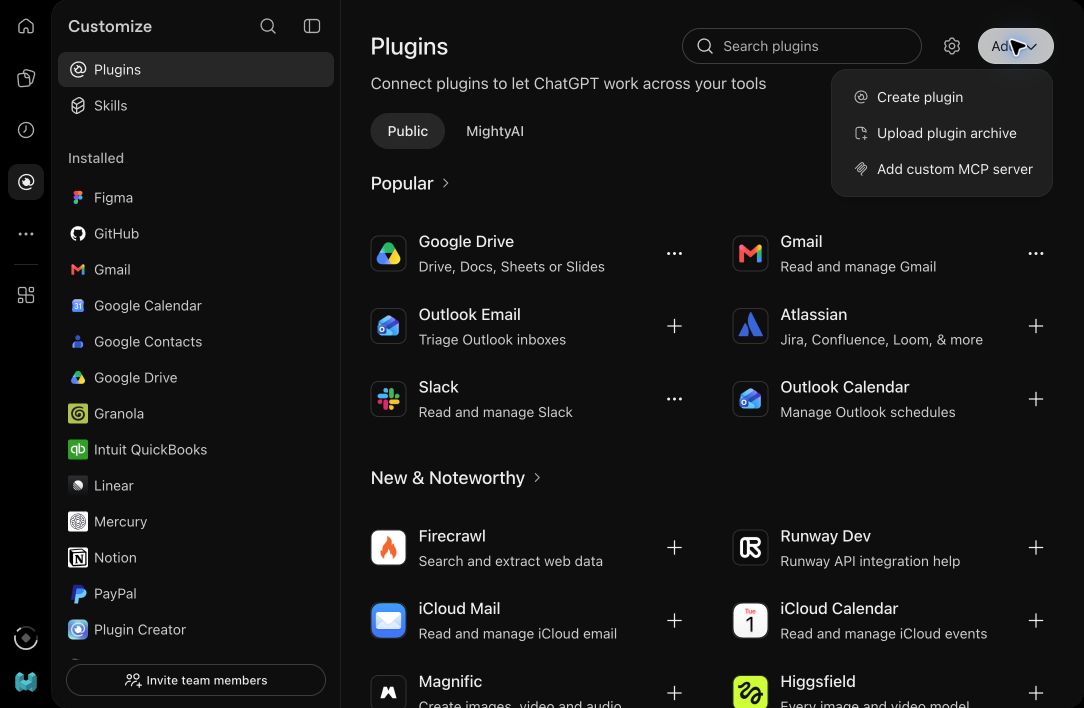
Open the Mighty Ads plugin from its installation link and follow the install prompts. If MightyAI supplied an archive for upload, use Add → Upload plugin archive in the shared directory. Package formats differ by client; use the Codex package provided to you.
Open the installed plugin's account settings, connect MightyAI, and complete browser sign-in. Select the workspace containing your brand, then start a new Codex chat.
See OpenAI's plugin guide for supported surfaces. The screenshot above shows the shared directory on the web; the desktop app's layout can differ.
Set up a direct connection
Ask Codex to connect
You can ask Codex to help:
Try this request
A direct connection does not install Mighty Ads skills. If MightyAI supplied a skills ZIP separately, attach it in Codex and ask it to install those skills as well.
Check the connection
Try this request
Choose your brand and run your first advertising review.
To change the workspace authorized by this direct connection, run codex mcp logout mighty, then repeat the login step. Plugin account connections are managed in the plugin's settings.
See OpenAI's MCP documentation for client configuration.