
Connect Claude
Connect MightyAI in Claude using the plugin or a custom connector.
Use your MightyAI account to connect Claude to your workspace and brands.
Choose your setup
Install the Mighty Ads plugin
If you have a Claude plugin ZIP from MightyAI, open Customize → Plugins, choose + Add → Upload plugin, and select the ZIP. Keep the plugin enabled. Open its Connectors tab and connect mighty.
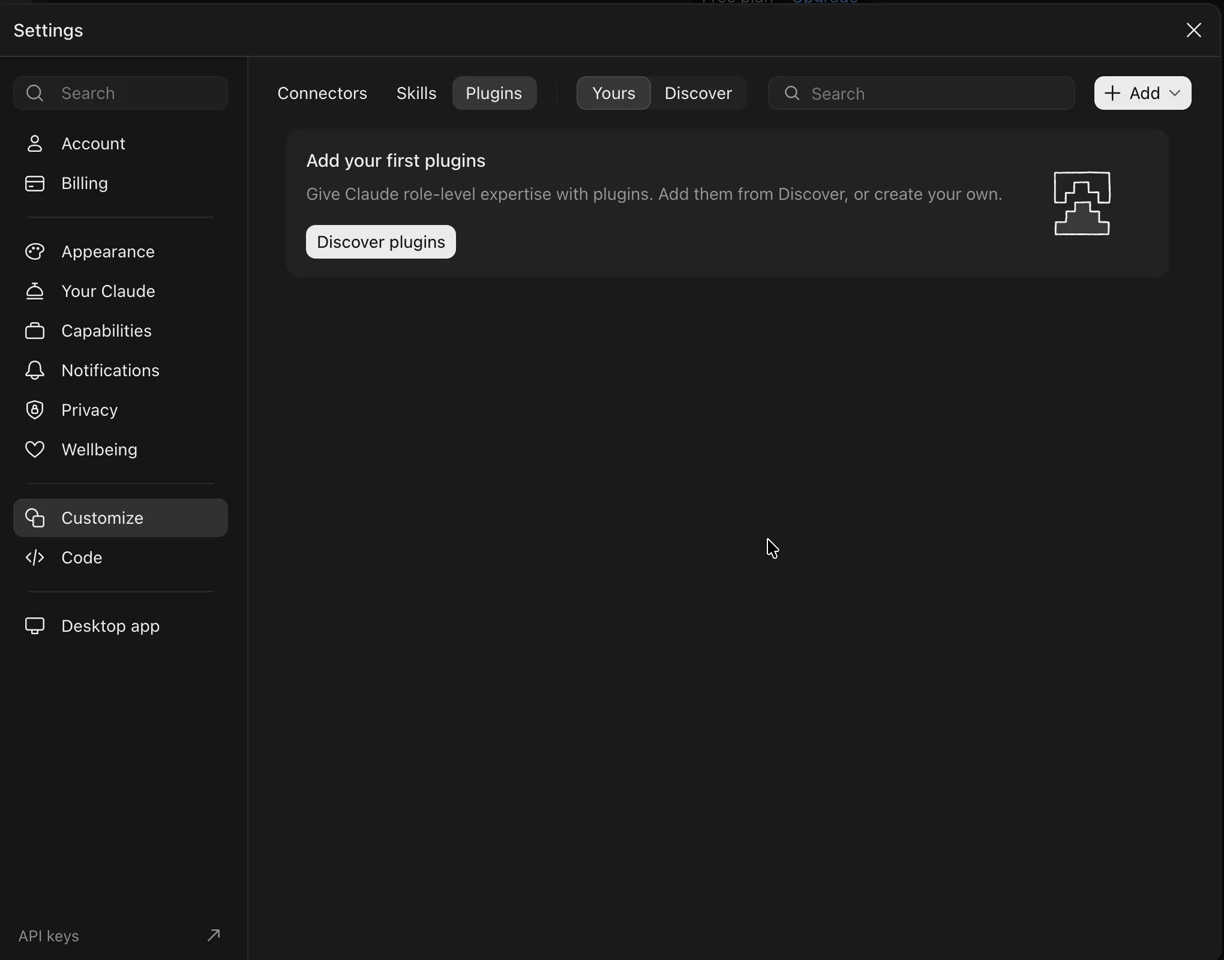
Need the plugin package? Contact MightyAI for the current Claude download.
Check the connection
Try this request
Use MightyAI to list the brands I can access. Do not make changes.
Choose your brand, then try your first advertising review.
If the wrong brands appear, disconnect and reconnect MightyAI in Claude's connector settings, selecting the intended workspace. Keep the plugin installed.
Claude's menus and availability can vary. See Claude's custom connector guide.