---
title: Connect Codex
description: "Connect the Mighty Ads plugin or use the MightyAI MCP server in Codex."
---
> **For AI agents:** the complete documentation index is at [llms.txt](https://mightyai.jamdesk.app/llms.txt). Append `.md` to any page URL for its markdown version.
If you have the Mighty Ads plugin, connect MightyAI from its account settings. Complete browser sign-in and choose the workspace containing your brand.
Need the plugin or skills package? [Contact MightyAI](https://www.getmighty.ai/contact) for the current Codex setup files.
## Find the plugin
### 1. Open Plugins
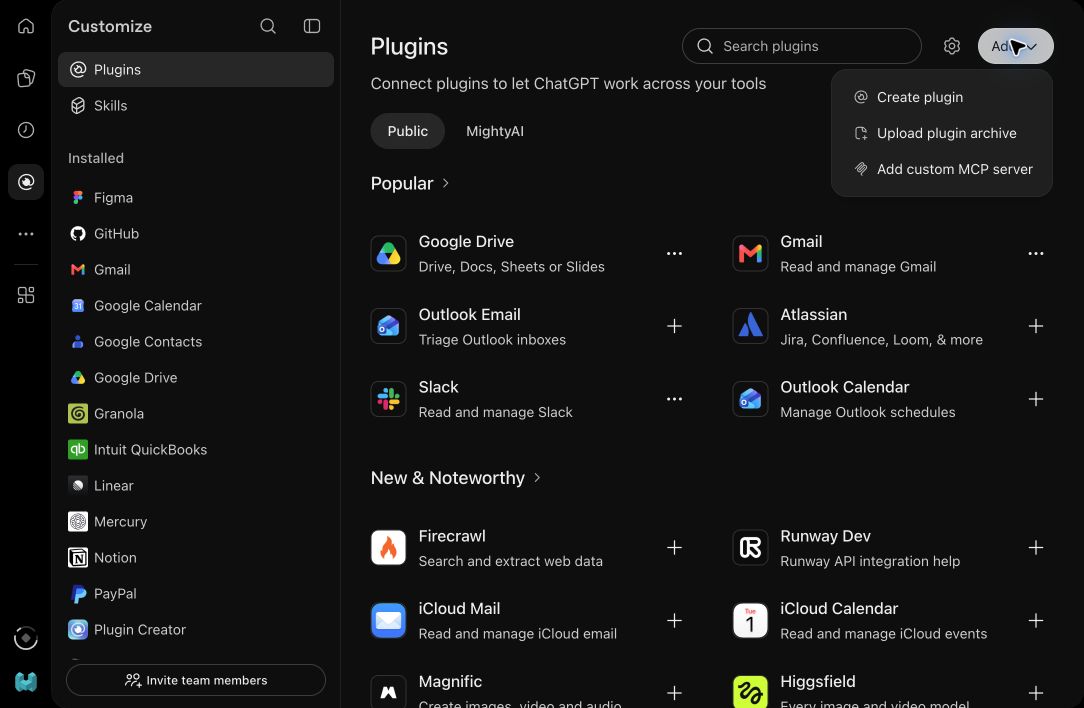
In the desktop app, open **Plugins** to browse the shared ChatGPT and Codex plugin directory. Use the Mighty Ads installation link supplied to you if the plugin is not listed in your directory.
 ### 2. Install the supplied plugin
Open the Mighty Ads plugin from its installation link and follow the install prompts. If MightyAI supplied an archive for upload, use **Add → Upload plugin archive** in the shared directory. Package formats differ by client; use the Codex package provided to you.
### 3. Connect your account
Open the installed plugin's account settings, connect MightyAI, and complete browser sign-in. Select the workspace containing your brand, then start a new Codex chat.
See [OpenAI's plugin guide](https://learn.chatgpt.com/docs/plugins) for supported surfaces. The screenshot above shows the shared directory on the web; the desktop app's layout can differ.
## Set up a direct connection
### Ask Codex
### Ask Codex to connect
You can ask Codex to help:
Help me connect MightyAI using the direct MCP server named mighty at https://api.mightyai.app/mcp. Check existing connections first and reuse a matching connection. Ask me before replacing a connection that points somewhere else. Start browser sign-in and help me select my workspace. Do not make advertising changes.
A direct connection does not install Mighty Ads skills. If MightyAI supplied a skills ZIP separately, attach it in Codex and ask it to install those skills as well.
### Terminal
### Run the setup commands
Check existing connections first:
```bash
codex mcp list
```
If `mighty` is not already configured:
```bash
codex mcp add mighty --url https://api.mightyai.app/mcp
```
Then sign in:
```bash
codex mcp login mighty --scopes mcp:all,user:org:read --oauth-client-registration cimd
```
Complete sign-in and workspace selection in the browser. Restart Codex and open a new chat.
## Check the connection
Use the mighty connection to list the brands I can access. Ask which one I want to use. Do not make changes.
Choose your brand and run [your first advertising review](https://mightyai.jamdesk.app/quickstart).
To change the workspace authorized by this direct connection, run `codex mcp logout mighty`, then repeat the login step. Plugin account connections are managed in the plugin's settings.
See [OpenAI's MCP documentation](https://learn.chatgpt.com/docs/extend/mcp?surface=cli) for client configuration.